Account security
How to Audit Passwords in One Sitting: Step-by-Step
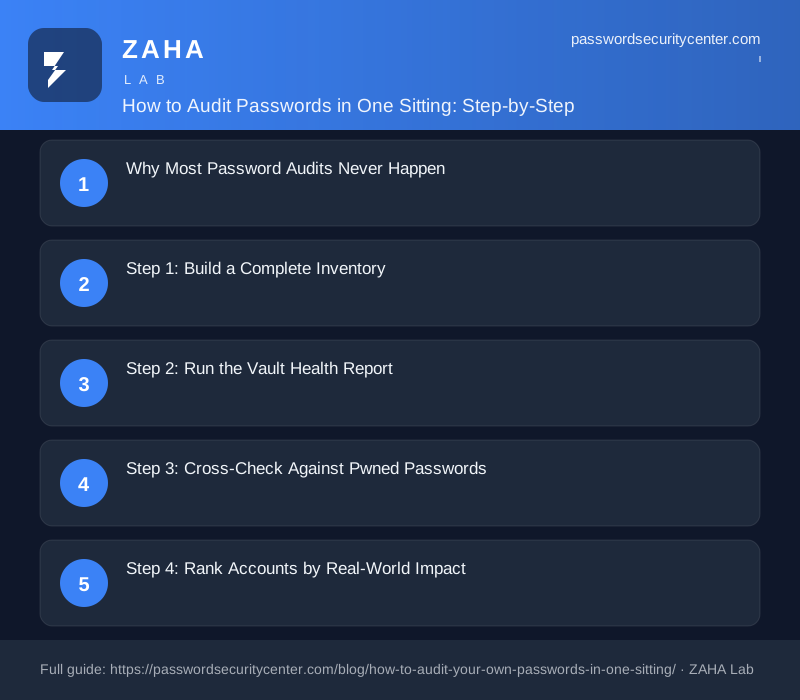
To audit passwords properly, you need a password manager with a built-in health report, Have I Been Pwned, and one afternoon. No specialist tools required. Most people find fewer than 25 passwords that genuinely need changing, and fixing those takes under two hours.
Credential theft drives more than 80% of hacking-related breaches, according to Verizon's 2024 Data Breach Investigations Report. To audit passwords properly, you need a password manager with a built-in health report, Have I Been Pwned, and one afternoon. You do not need specialist software, security credentials, or more than a single sitting. Most people find fewer than 25 passwords that genuinely need changing.
Why Most Password Audits Never Happen
The task sounds large. People picture scrolling through hundreds of logins with no clear definition of "done." That framing is wrong.
A password audit has a defined start (listing what you have), a defined end (replacing the high-risk credentials), and a measurable output (the count of weak and reused passwords eliminated). The process breaks into five steps. Each takes 10 to 30 minutes with clear pass/fail criteria at every stage.
The risk of skipping is concrete. Credential stuffing, where attackers feed username-and-password pairs from one breach into banking portals, email providers, and cloud services, is documented as one of the most common initial access methods in MITRE ATT&CK technique T1110.003. Fixing three reused Tier-1 passwords removes that attack path almost entirely.
One breach on a low-stakes forum account is a minor incident on its own. The same password reused on five other sites turns that breach into a simultaneous compromise of five accounts. Password reuse is what converts a coupon site leak into a banking incident.
Step 1: Build a Complete Inventory
You cannot audit what you have not found. Passwords live in more places than most people expect.
Where credentials hide
Dedicated password managers. Bitwarden, 1Password, Dashlane, and Keeper store credentials in an encrypted vault. If you already use one of these, it becomes the anchor for your audit.
Browser vaults. Chrome, Firefox, Edge, and Safari each maintain a separate credential store. Chrome's is accessible at passwords.google.com when signed in with a Google Account. Firefox's lives at about:logins. Safari's is in System Settings > Passwords on macOS Ventura and later.
OS keychains. iCloud Keychain syncs across Apple devices independently of any browser vault. Google Password Manager on Android does the same. Both can hold credentials that overlap partially or not at all with your browser vault.
Analog records. A notepad, a sticky note, a spreadsheet on your desktop. Anything stored here that is not in a digital vault should be migrated today.
Get a rough count across all four sources before judging anything. 150 to 200 accounts is typical for someone online since the early 2010s. You are building the inventory, not grading it yet.
Consolidate before you audit
Pick one password manager and import everything else into it. Chrome lets you export via passwords.google.com > Export. Firefox exports via about:logins > Export Logins. All major managers accept these CSV files directly.
This step is not optional. Health reports only detect reuse patterns inside the same vault. A password that appears in both your browser and a standalone app will not be flagged as reused unless both sources are merged into one place first.
Step 2: Run the Vault Health Report
Every major password manager includes an audit dashboard. Open it now.
Bitwarden calls it Vault Health Reports, found under the Tools menu. 1Password has Watchtower in the sidebar. Dashlane displays a Health Score with category drill-downs. The label differs; the categories do not.
| Category | What it means | Fix priority |
|---|---|---|
| Reused passwords | Same password on 2 or more sites | Critical |
| Exposed passwords | Password matches a known breach record | Critical |
| Weak passwords | Short, dictionary-based, or low-entropy string | High |
| Missing 2FA | Site supports MFA but none is enrolled | High |
| Old passwords | Unchanged for 3 or more years | Medium |
| Unsecured sites | Credential sent over unencrypted HTTP | Medium |
Start with the Critical rows. A reused password on your email account and your bank is a single point of failure for both at the same time.
Do not try to resolve every row today. The goal is eliminating Critical items on Tier-1 accounts. Weak passwords on accounts you log into twice a year can wait for a follow-up session. Active reused credentials cannot.
Step 3: Cross-Check Against Pwned Passwords
Your manager's breach database is useful, but it is not exhaustive. Have I Been Pwned's Pwned Passwords covers more than 10 billion compromised passwords collected from public breach disclosures going back years.
The service uses k-anonymity. You enter a password and it is hashed with SHA-1 locally. Only the first 5 characters of that hash are sent to the server, which returns a list of all matching hashes. Your actual password is never transmitted in plaintext. NIST SP 800-63B recommends checking passwords against breach corpuses at the point of enrollment; the same logic applies during a mid-lifecycle audit.
Visit haveibeenpwned.com and run every email address you use, not just your primary one. Breached datasets often include partial card numbers, dates of birth, or security question answers alongside the credential. A clean password does not mean the surrounding account data is safe.
Any password flagged as exposed: generate a 20+ character random replacement from your manager's built-in generator and update the account the same day.
Step 4: Rank Accounts by Real-World Impact
Not every account needs the same urgency this afternoon. A compromised loyalty card account is annoying. A compromised email account is a different category of problem: most password-reset flows route to email, so access to your inbox equals effective access to every other account that shares that address.
Work through three tiers in order, starting with Tier 1 today.
Tier 1: Fix today. Primary email address and any secondary addresses actively used for account signups. Online banking, brokerage, and pension portals. Cloud storage holding personal documents (Google Drive, Dropbox, OneDrive, iCloud Drive). Work accounts with admin access or payment authority. Domain registrar and DNS host. Phone carrier account, which is typically the starting point for SIM-swap attacks.
Tier 2: Fix this week. Social media accounts with payment methods attached. Health and medical portals. Government services (tax authority, pension provider, passport applications). Shopping accounts with stored credit card details.
Tier 3: Fix this month. Forums and community boards. News subscriptions. Loyalty programs and airline accounts. Any account tied to your real name that you would not want compromised publicly.
If you run out of time today, completing Tier 1 is a successful audit session. Tiers 2 and 3 carry real but lower risk, and they will still be there next week.
Step 5: Enable MFA on Every Tier-1 Account
A strong unique password removes most of the credential-stuffing risk. It is not sufficient by itself for high-value accounts. NIST SP 800-63B calls for multi-factor authentication on accounts holding sensitive data, and Verizon DBIR data consistently shows that MFA-protected accounts are significantly harder to take over even when the underlying password has been exposed.
Choosing the right second factor
SMS-based codes are better than a password alone, but they are the weakest MFA option available. SIM-swapping attacks, where an attacker convinces a carrier to transfer your phone number, and real-time phishing relays both defeat SMS codes. Use them only when nothing better is on offer.
Time-based one-time passwords (TOTP), standardized in RFC 6238, generate a 6-digit code on your device every 30 seconds. Each code is single-use and never stored server-side. Most authenticator apps (Google Authenticator, Authy, Raivo) and many password managers support TOTP directly. This is the minimum for every Tier-1 account.
Passkeys, specified by the FIDO Alliance, replace the password entirely with a public-private key pair. The private key stays in your device's secure enclave. Authentication signs a cryptographic challenge tied to the specific domain, so a phishing page cannot intercept usable credentials. Google, Apple, Microsoft, PayPal, and a growing list of banks support passkey enrollment now. When a service offers it, enroll.
When you enroll an account in TOTP, the site shows a set of one-time backup codes. Store them immediately in your password manager's secure notes field, not in a plain text file on your desktop. If you lose access to your authenticator app, those codes are the only way back in without a support queue.
For the highest-stakes accounts (primary email, domain registrar, financial services that support it), a hardware security key costs $25 to $60 and provides protection SMS and TOTP cannot match. YubiKey and Google Titan keys work across browsers and operating systems. Because the key signs a challenge tied to the specific domain, a phishing page for a fake bank URL gets nothing usable.
What to Do Now
Today:
- Export credentials from every browser vault and import them into one password manager.
- Open the vault health report and note the count of reused and exposed passwords.
- Run every email address you use through haveibeenpwned.com.
- Replace every Tier-1 account password with a 20+ character random string from the generator.
- Enroll TOTP or passkeys on every Tier-1 account before closing the session.
Ongoing:
Set a calendar event 12 months from today to repeat steps 2 through 5. Enable continuous breach monitoring in your password manager if it offers it. Treat any breach notification email as a Tier-1 incident and act the same day.
The full session takes 90 minutes to two hours from first export to last MFA enrollment. The risk reduction is immediate: the moment you replace a reused credential on your primary email, you close one of the most commonly exploited attack paths in use today.
Frequently asked questions
How often should I audit my passwords?
Once a year is sufficient for most people. Run an unscheduled check any time you receive a breach notification email or your password manager flags a new exposure in its monitoring dashboard.
Do I need a paid password manager to run a vault health report?
No. Bitwarden's free tier includes the full Vault Health Reports dashboard, covering reused, weak, and exposed passwords at no cost. 1Password's Watchtower and Dashlane's Health Score are available on their paid tiers.
Is it safe to check my actual password on Have I Been Pwned?
Yes. The service uses k-anonymity: only the first 5 characters of your password's SHA-1 hash are sent to the server. The full password never leaves your device in plaintext.
How long should a replacement password be?
NIST SP 800-63B sets the minimum at 8 characters for user-chosen passwords, but current practice targets 16 to 20+ random characters generated by a password manager, with no memorability requirement.
Sources
- Verizon Data Breach Investigations Report
- Have I Been Pwned: Pwned Passwords
- NIST SP 800-63B (Digital Identity Guidelines, authentication)
Related reading
How to Store Recovery Codes and Avoid Lockouts
Learn where to store recovery codes and never get locked out of your accounts. Two-copy method, best storage options, and what to do after using a cod
Password Manager Buying Guide: What Actually Matters
Our password manager buying guide covers zero-knowledge encryption, passkey support, breach monitoring, and what to verify before trusting your vault.

Password Policy Best Practices That Staff Will Actually Follow
The proven password policy best practices: mandate length, ban reuse, deploy a manager with SSO, and enforce phishing-resistant 2FA for admins.