Guides
Two-Factor Authentication Setup: Right Order, Right Method
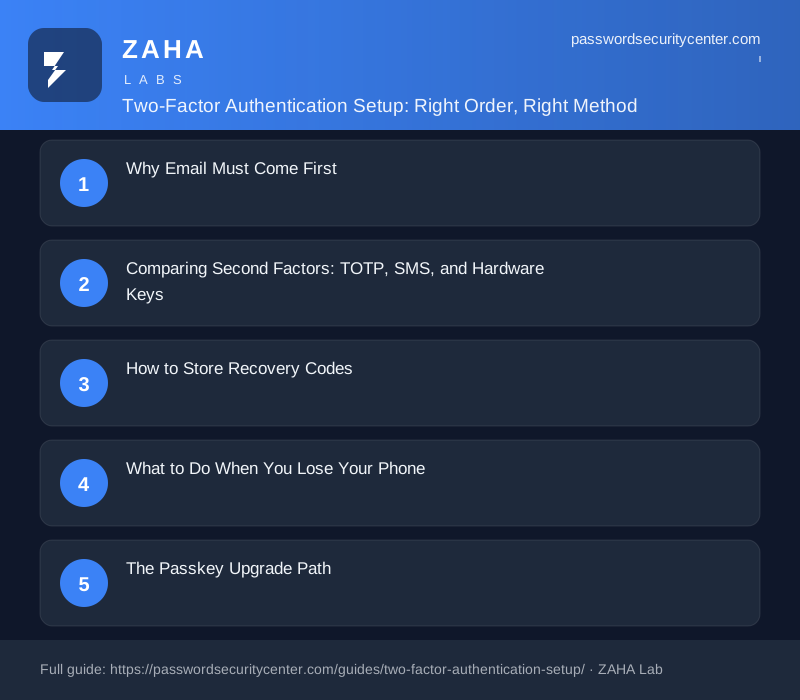
Two factor authentication setup should start with your email account, not your bank, because email resets every other password you own. Use an authenticator app for time-based codes wherever possible, save recovery codes somewhere physical and offline, and treat passkeys as the upgrade path for any account that supports them.
Most people enable 2FA at their bank first, but email resets every password they own, making it the more dangerous gap.
Two factor authentication setup done correctly starts with your inbox. Secure your email account first, then banking and work accounts, using an authenticator app instead of SMS at every step and storing recovery codes somewhere physical before you do anything else.
Why Email Must Come First
Your primary email address is the skeleton key to your digital life. Nearly every web service, banks, brokerages, social platforms, work tools, offers a "forgot password" option that sends a reset link to your inbox. Gain access to that inbox and an attacker can silently reset every password you own without knowing any of them in advance.
Set 2FA on your primary email before you touch any other account. If you use multiple email addresses, check which ones receive password-reset emails from important services and secure those too.
The right priority order
Work through this sequence, and complete each tier before moving to the next:
- Primary email (and any alias that receives account resets)
- Banking and brokerage accounts
- Work identity provider (Okta, Azure AD, Google Workspace, one enrollment covers every app it federates)
- Social media accounts, especially those linked to other logins or used as login providers
- Everything else: streaming, retail, forums
Skipping ahead to banking while leaving email unprotected is the most common mistake. An attacker who controls your email can undo any 2FA enrollment you complete on other accounts by triggering a password reset.
Comparing Second Factors: TOTP, SMS, and Hardware Keys
The most important question to ask about any second factor is whether it is phishing-resistant, that is, whether a fake login page can capture and replay it in real time.
| Second factor | Phishing resistant | Replay window | NIST AAL | When to use |
|---|---|---|---|---|
| SMS OTP | No | ~60 seconds | AAL1 | Last resort only |
| Email OTP | No | Minutes | AAL1 | Last resort only |
| TOTP app (RFC 6238) | No, but narrow window | 30 seconds | AAL2 | Most accounts |
| FIDO2 hardware key | Yes | None | AAL3 | High-value accounts |
| Passkey (device-bound) | Yes | None | AAL2–3 | Wherever supported |
SMS one-time passwords are the weakest second factor in widespread use. SIM-swap attacks, where a criminal convinces your carrier to port your number to a SIM they control, are a documented, recurring method for bypassing SMS 2FA on high-value accounts. NIST SP 800-63B notes that out-of-band codes delivered via SMS are vulnerable to interception and recommends against them for anything above low-assurance contexts.
TOTP authenticator apps (such as Aegis, Google Authenticator, or the built-in TOTP feature in 1Password) generate six-digit codes locally on your device every 30 seconds, as defined by RFC 6238. There is no carrier to social-engineer and the code is never transmitted to a server that could be breached. A real-time phishing relay can still work in theory, but the attacker must act inside a 30-second window, a constraint that sharply limits who can execute such an attack.
Hardware security keys using FIDO2/WebAuthn, such as a YubiKey or Google Titan key, are the only second factor that is cryptographically phishing-proof by design. The key signs a challenge that includes the exact origin domain of the login page. A fake page at g00gle.com receives a structurally different challenge and will never produce a valid response.
If SMS is your only available option on a critical account today, enable it now rather than waiting until you acquire a hardware key. Any second factor raises the attacker's cost significantly. The goal is to migrate away from SMS over time, not to leave accounts unprotected while you plan.
How to Store Recovery Codes
Every time you enable TOTP on an account, the service generates a set of single-use recovery codes. These codes bypass the second factor entirely so you can regain access if you lose your authenticator device. Treat them with the same weight as a physical house key.
Practical storage options, in order of preference:
- Printed and stored in a locked physical location (a home safe, a locked filing cabinet, or a safety deposit box)
- Saved inside an encrypted password manager that is separate from the account you are protecting
- Written on paper in a physically secure place, not a sticky note near your computer
Do not store recovery codes in email drafts, in unencrypted cloud folders, or inside the same authenticator app that holds your TOTP seeds. If an attacker has access to that app, they should not also find a bypass for it there.
Regenerate your recovery codes any time you use one, or any time you suspect they may have been seen by an unauthorized person. Generate a fresh set before closing the security settings page.
What to Do When You Lose Your Phone
Losing the device that holds your authenticator app is recoverable, if you prepared. Follow this sequence immediately:
- Use a recovery code to sign into each affected account. This is the only reason you stored them.
- Revoke the old authenticator device from each account's security settings.
- Enroll your replacement device as the new second factor before leaving the security settings page.
- Generate and store new recovery codes once enrollment is complete.
If you did not save recovery codes, most services offer an identity-verification recovery process that may involve an alternate email, a phone number on file, or an official ID check. These processes often take several days. CISA recommends treating account recovery as a contingency you plan for in advance, not one you improvise after the fact.
Some authenticator apps support encrypted backups of the underlying TOTP seeds: Aegis on Android offers local encrypted exports, and iCloud Keychain on iOS 17 and later can store TOTP credentials natively. Enable these options at enrollment time, not after a loss.
The Passkey Upgrade Path
Passkeys, defined by the FIDO Alliance and built on the same WebAuthn standard as hardware security keys, replace both the password and the second factor with a single phishing-resistant credential. The private key never leaves your device; the service stores only a public key that is useless to an attacker on its own.
As of 2025, passkey enrollment is available on Google, Apple ID, Microsoft accounts, GitHub, Amazon, and a growing number of financial institutions. The migration process is straightforward:
- Navigate to the security or sign-in settings of a supported account.
- Choose "Add a passkey" and complete the prompt using your device's biometrics or PIN.
- Test the passkey by signing out and back in before removing any other second factor.
- Once the passkey is confirmed working, disable SMS-based 2FA on that account, it is now redundant and weaker than the credential you just enrolled.
Keep your TOTP app active for accounts that do not yet support passkeys. The goal is a gradual migration as support grows, not a single-day switchover.
Two-Factor Authentication Setup Checklist
Work through this in order. Do not skip ahead.
- Identify your primary email account, the one used as a recovery address on other services.
- Enable 2FA on that email using an authenticator app, not SMS.
- Save the recovery codes in a locked physical location or encrypted password manager.
- Repeat steps 2 and 3 for every email address that receives account-reset emails.
- Enable 2FA on all banking and brokerage accounts. Use TOTP if available; accept SMS only as a temporary measure.
- Enable 2FA on your work identity provider. A single enrollment typically covers all federated applications.
- Enable 2FA on social media accounts, particularly those linked to other services or used as login providers.
- Enroll a hardware security key or passkey on each high-value account that supports it.
- Audit every account still using SMS 2FA and migrate to TOTP or a passkey where support exists.
- Test account recovery on your most critical account: confirm a recovery code works, then generate fresh codes and re-store them.
The full audit takes 30–60 minutes for most people. The accounts with the highest blast radius, primary email, take fewer than five minutes each to secure.
Frequently asked questions
Is SMS two-factor authentication safe enough?
SMS 2FA is better than no second factor, but it is vulnerable to SIM-swap attacks in which a criminal ports your phone number to a device they control. NIST SP 800-63B specifically notes the risk of SMS interception. Migrate to a TOTP app or hardware key wherever possible.
What is the best authenticator app to use?
Aegis (Android, open-source with encrypted backups), Google Authenticator, and the built-in TOTP feature in password managers like 1Password all work reliably. The key factor is that the app generates codes locally on your device rather than pulling them from a server that could be breached.
What happens if I lose my phone and have no recovery codes?
You will need to go through the service's account recovery process, typically involving an alternate email, a phone number on file, or official ID verification. These processes often take several days. Storing recovery codes in advance is by far the faster path back.
What is a passkey and how is it different from 2FA?
A passkey replaces both your password and your second factor with a single phishing-resistant credential based on public-key cryptography. The private key never leaves your device, and the service stores only a public key that is useless without the corresponding private key.
Do I need a hardware security key or is an authenticator app enough?
For most personal accounts, a TOTP app provides strong, practical protection. Hardware keys add cryptographic phishing resistance and are worth the investment for accounts where compromise would be catastrophic, primary email, financial accounts, or accounts that serve as social login providers.
Can I use the same recovery code more than once?
No, each recovery code is single-use and is invalidated the moment it is used. Generate a fresh set of recovery codes after any use, and store the new set securely before closing the security settings page.
Sources
- NIST SP 800-63B (Digital Identity Guidelines, authentication)
- RFC 6238 (TOTP)
- FIDO Alliance: passkeys
- CISA: Use strong passwords
Related reading
Passkeys vs Passwords: What Actually Changes for You
A plain-English guide to passkeys vs passwords: how the key pair works, why phishing fails, what to do if you lose your device, and how to start migra
Password Manager Buying Guide: What Actually Matters
Our password manager buying guide covers zero-knowledge encryption, passkey support, breach monitoring, and what to verify before trusting your vault.

Password Policy Best Practices That Staff Will Actually Follow
The proven password policy best practices: mandate length, ban reuse, deploy a manager with SSO, and enforce phishing-resistant 2FA for admins.