Account recovery
How to Store Recovery Codes and Avoid Lockouts
Store recovery codes in at least two separate locations the moment any service generates them: one physical copy locked away, and one set encrypted inside a password manager. That combination keeps you covered when your device fails and when paper is unavailable.

Your phone breaks on a Friday night. Your authenticator app is inaccessible. The account you need has no fallback email registered. Without recovery codes, you wait until Monday for support, if you're lucky.
Store recovery codes in at least two locations the moment any service generates them: one physical copy locked away, one encrypted set inside a password manager. That two-copy rule keeps you out of that scenario entirely.
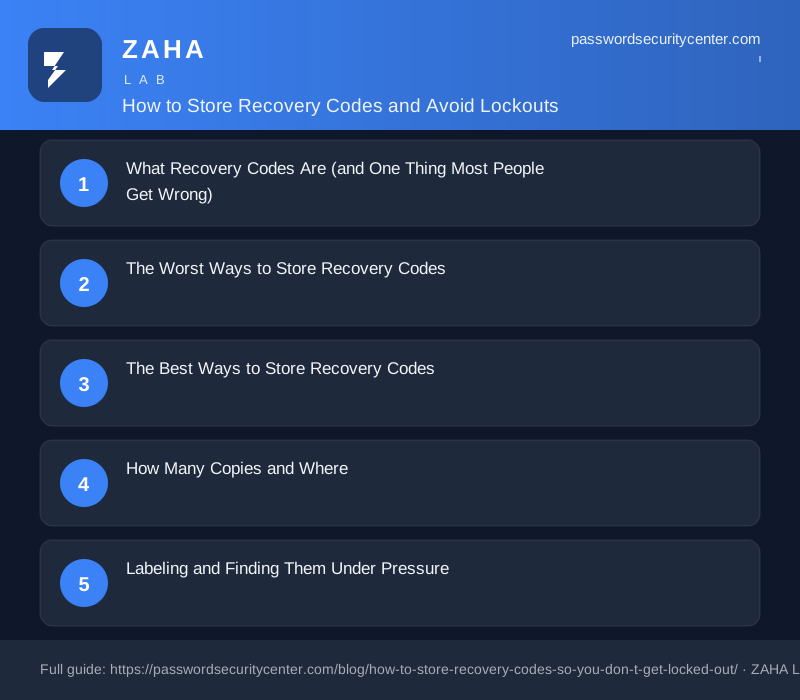
What Recovery Codes Are (and One Thing Most People Get Wrong)
Recovery codes (also called backup codes) are single-use strings, usually 8 to 12 characters, that bypass two-factor authentication when your normal second factor is unavailable. Services generate them during 2FA setup or on demand from your security settings.
The one thing most people get wrong: recovery codes are not your password, and they are not the TOTP seed (the QR code you scan at setup). They are a separate, limited-use bypass credential issued directly by the service.
Most services issue between 8 and 10 codes. Each one is single-use. Use all of them without generating replacements, and you face the locked-out scenario you were trying to prevent.
When you actually need them
- Your phone is lost, stolen, or destroyed.
- You switch authenticator apps and forget to migrate your accounts.
- Your hardware security key is unavailable.
- A factory reset wipes your authenticator data entirely.
The Worst Ways to Store Recovery Codes
These methods feel convenient. They fail at exactly the wrong moment.
Screenshots in your camera roll. If your device is the problem, the photo is gone with it. If your cloud photo backup is compromised, an attacker gets the codes along with everything else.
An email draft to yourself. Email is searchable, often poorly secured, and regularly involved in breaches. A recovery code sitting in a drafts folder is one phishing attack away from exposure.
A text file on your desktop. Unencrypted, likely synced to cloud storage you may not fully control, and visible to any malware that gets a foothold.
Memory only. Recovery codes are randomly generated strings. Nobody memorizes 7f3k9-xm2bp. Don't rely on recall.
Saving recovery codes as a screenshot puts them in the same place as everything else on your device. If the phone is why you need the code, that screenshot is already inaccessible.
The Best Ways to Store Recovery Codes
Printed or handwritten, locked away
Print the codes or write them by hand. Store the paper somewhere physical that is not your desk drawer: a home safe, a locked filing cabinet, or a fireproof document box.
Paper sounds dated. It is also offline, immune to remote attacks, and requires no software to read. The NCSC recommends written-down credentials for home users specifically because offline storage removes the remote attack surface. Recovery codes benefit from the same logic.
Label each sheet with the service name, the date generated, and how many codes remain unused. That clarity matters six months later when you cannot remember which sheet belongs to which account.
Inside an encrypted password manager
A password manager with a strong master password is the right place to store recovery codes digitally. Paste the full code set into the notes field of that account's entry.
One important caveat: your password manager itself needs its own separate recovery path. If every account's recovery codes live only inside one password manager and you lose access to that manager, you have a single point of failure with no exit. Store at least a printed copy of your password manager's emergency access (most services call this an emergency kit or recovery phrase) in the same physical location as your other printed codes.
An encrypted file on offline media
For high-value accounts, an encrypted file on a USB drive stored away from your main computer is a solid third option. VeraCrypt and 7-Zip both support AES-256 encryption. Verify the file is readable before you need it. A corrupted encrypted file is exactly as useless as no backup at all.
How Many Copies and Where
| Storage method | Online or offline | Survives device loss | Survives fire or flood | Recommended |
|---|---|---|---|---|
| Password manager notes | Online, encrypted | Yes | Yes | Yes |
| Printed copy, home safe | Offline | Yes | Partial | Yes |
| Printed copy, second location | Offline | Yes | Yes | For high-value accounts |
| Screenshot in photos | Online, unencrypted | No | Yes | No |
| Email draft | Online, unencrypted | No | Yes | No |
| Unencrypted text file | Online | No | Yes | No |
Two copies is the minimum: one in your password manager, one physical. For accounts that control significant assets (primary email, financial accounts, domain registrars), add a third copy at a second physical location, such as a trusted family member's home or a safety deposit box.
Labeling and Finding Them Under Pressure
Recovery codes are useless if you cannot locate the right one quickly. Good labeling takes two minutes and saves hours.
For printed copies
Write or type the following at the top of each sheet:
- Service name (for example, "Google - personal" or "GitHub - work")
- Date generated
- Number of codes remaining if you have used any
Keep all sheets together in one labeled envelope or folder: "2FA Recovery Codes." Alphabetical order by service name is enough. You are not building an archive; you just need to find the right sheet in under 30 seconds.
For password manager entries
Use a consistent format in the notes field. Something like:
Recovery codes (generated 2025-03-12, 10 unused)
abc12-def34
ghi56-jkl78
When you use a code, delete it from the list and update the count. Keeping a mix of used and unused codes in one field creates uncertainty. Keep the list accurate.
What to Do After Using a Recovery Code
Each code is single-use. Using one reduces your margin. Using several means you are approaching lockout territory.
After using a recovery code, do three things immediately.
First, regenerate the full set. Nearly every service lets you do this from account security settings. The old codes are invalidated and you get a fresh batch. Save the new set the same way you saved the first one.
Second, fix the underlying problem. Why did you need the code? If your authenticator app was lost, set up a new authenticator before you rely on codes again. Without a working second factor, your account remains in a weakened state.
Third, check your other accounts. If you changed devices or had a security event, other accounts may be in the same situation. Run through your 2FA-enabled accounts and confirm each one is still accessible normally.
Any time you reset your device, switch authenticator apps, or lose a physical key, generate a fresh set of recovery codes. Old codes may still work, but starting from a clean set removes any uncertainty about which codes have already been used.
The password manager loop
Most people plan for losing their phone. Fewer plan for losing access to their password manager.
If your password manager requires 2FA to log in, and your recovery codes for the password manager are stored only inside the password manager, you have a loop with no exit. Your password manager's emergency access (a recovery phrase or emergency kit) needs to exist outside the manager itself, in printed form in a physically secure location.
RFC 6238, which defines the TOTP standard used by most authenticator apps, treats the TOTP seed as the root credential. Recovery codes sit one layer above that. They are your last resort. Planning for that scenario takes 10 minutes.
What to Do Now
- Open each service that has 2FA enabled. Find the recovery codes section and regenerate if you have not done so in over a year.
- Print or write down each set. Label the sheets. File them in a secure physical location today, not later.
- Paste the full code sets into the notes field of the matching entry in your password manager.
- For your three most important accounts (primary email, password manager, key financial account), create a second physical copy stored somewhere other than your home.
- Set a calendar reminder for 12 months from now to regenerate codes and verify they are still accessible.
Frequently asked questions
Can I regenerate recovery codes after using some of them?
Yes. Nearly every service lets you invalidate your current set and generate a fresh batch from account security settings. Do this immediately after using any code, and save the new set right away using both a physical copy and your password manager.
Should I store recovery codes in the same password manager as the account password?
Yes, with one condition: the password manager itself must have a separate emergency access method (a printed emergency kit or recovery phrase) stored outside the manager. If all your recovery codes exist only inside one password manager and you lose access to it, you have no way out.
Are recovery codes the same as backup codes?
Yes. The terms are interchangeable. Different services use different names: Google calls them backup codes, others call them recovery codes. Either way, they are single-use bypass credentials for when your primary second factor is unavailable.
What happens if I lose all my recovery codes and cannot access my authenticator?
You go through account recovery, which means identity verification with the service. The process can take hours to days depending on the platform. Some services may be unable to restore access at all. That outcome is exactly what keeping stored codes is meant to prevent.
Sources
Related reading

Password Policy Best Practices That Staff Will Actually Follow
The proven password policy best practices: mandate length, ban reuse, deploy a manager with SSO, and enforce phishing-resistant 2FA for admins.
Two-Factor Authentication Setup: Right Order, Right Method
Set up two factor authentication correctly: secure email first, choose TOTP over SMS, store recovery codes safely, and follow the passkey upgrade path
Save Passwords in Browser: Safe or Risky?
Saving passwords in your browser is convenient—but is it actually safe? We break down how browser password storage works and where it fails.